
Have you ever wondered where all the files, photos, and programs on your computer actually live? Understanding what storage in a computer means can change the way you use your device every day.
Storage isn’t just about saving your work—it’s the heart of your computer’s memory and speed. If you want to make your computer faster, keep your data safe, or simply get the most out of your device, knowing how storage works is key.
Keep reading, and you’ll discover simple explanations and tips that make storage easy to grasp and use.
Credit: www.usbmemorydirect.com
Storage Basics
Understanding storage is key to using computers well. Storage holds all your data and files. It keeps information safe even when the computer is off. Knowing storage basics helps you choose the right device for your needs.
What Storage Means
Storage means saving data on a device. It can be documents, photos, videos, or programs. Storage devices keep this data so you can use it later. Examples include hard drives, solid-state drives, and USB flash drives.
Storage is different from memory. Memory is fast but temporary. Storage is slower but permanent. This makes storage important for keeping your work and media safe.
Why Storage Matters
Storage affects how much data your computer can hold. More storage means you can save more files. It also affects how fast your computer works. Some storage types are quicker than others.
Choosing the right storage helps avoid losing important data. It also improves your computer’s performance. Good storage lets you work and play without delays or crashes.
Types Of Storage
Storage in computers holds all data and instructions. Different types of storage serve different purposes. Each type has unique features and uses. Understanding these types helps you know how computers save and access data.
Primary Storage
Primary storage is the main memory of a computer. It includes RAM and cache memory. This storage is fast but temporary. It holds data the CPU needs right now. When the power is off, data here disappears.
Secondary Storage
Secondary storage keeps data long-term. Examples are hard drives and solid-state drives. It is slower than primary storage but holds more data. Files, programs, and the operating system are stored here. Data stays even when the computer is off.
Tertiary Storage
Tertiary storage is used for backup and archiving. It uses devices like tape drives and optical discs. This storage is slower and less accessible. It holds large amounts of data for long periods. People use it to save important information safely.
Off-line Storage
Off-line storage is not always connected to the computer. USB drives and external hard drives are examples. Users connect them only when needed. This storage helps transfer data and keeps backups. It is portable and easy to use.
Primary Storage Explained
Primary storage is the computer’s main memory. It holds data that the CPU uses right now. This storage is fast but usually small in size. It helps the computer work quickly by keeping important information close.
There are three key types of primary storage: RAM, cache memory, and ROM. Each plays a unique role in the computer’s operation. Understanding them helps you know how your computer runs smoothly.
Ram Characteristics
RAM stands for Random Access Memory. It stores data temporarily while the computer is on. When you turn off the computer, RAM loses all its data. It is very fast and helps run programs quickly. More RAM means the computer can work on more tasks at once.
Cache Memory Role
Cache memory is a small, very fast type of memory. It stores data the CPU needs often. This reduces the time to get data from slower memory. Cache helps speed up processing by keeping important data close to the CPU.
Rom Functions
ROM means Read-Only Memory. It stores data permanently, even without power. It holds essential instructions to start the computer. The data in ROM cannot be changed or deleted. It ensures the computer boots up correctly every time.
Credit: www.graphene.cam.ac.uk
Secondary Storage Options
Secondary storage holds data permanently or for a long time. It keeps files, programs, and the operating system safe even when the computer is off. This storage is slower than main memory but offers much more space. Various types of secondary storage suit different needs and budgets.
Hard Disk Drives (hdd)
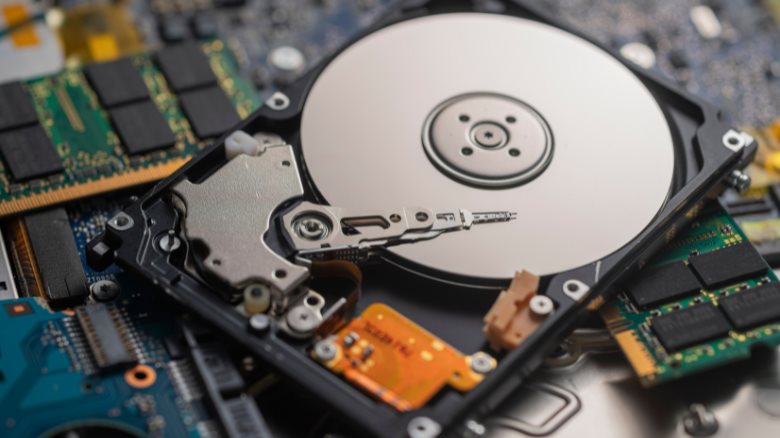
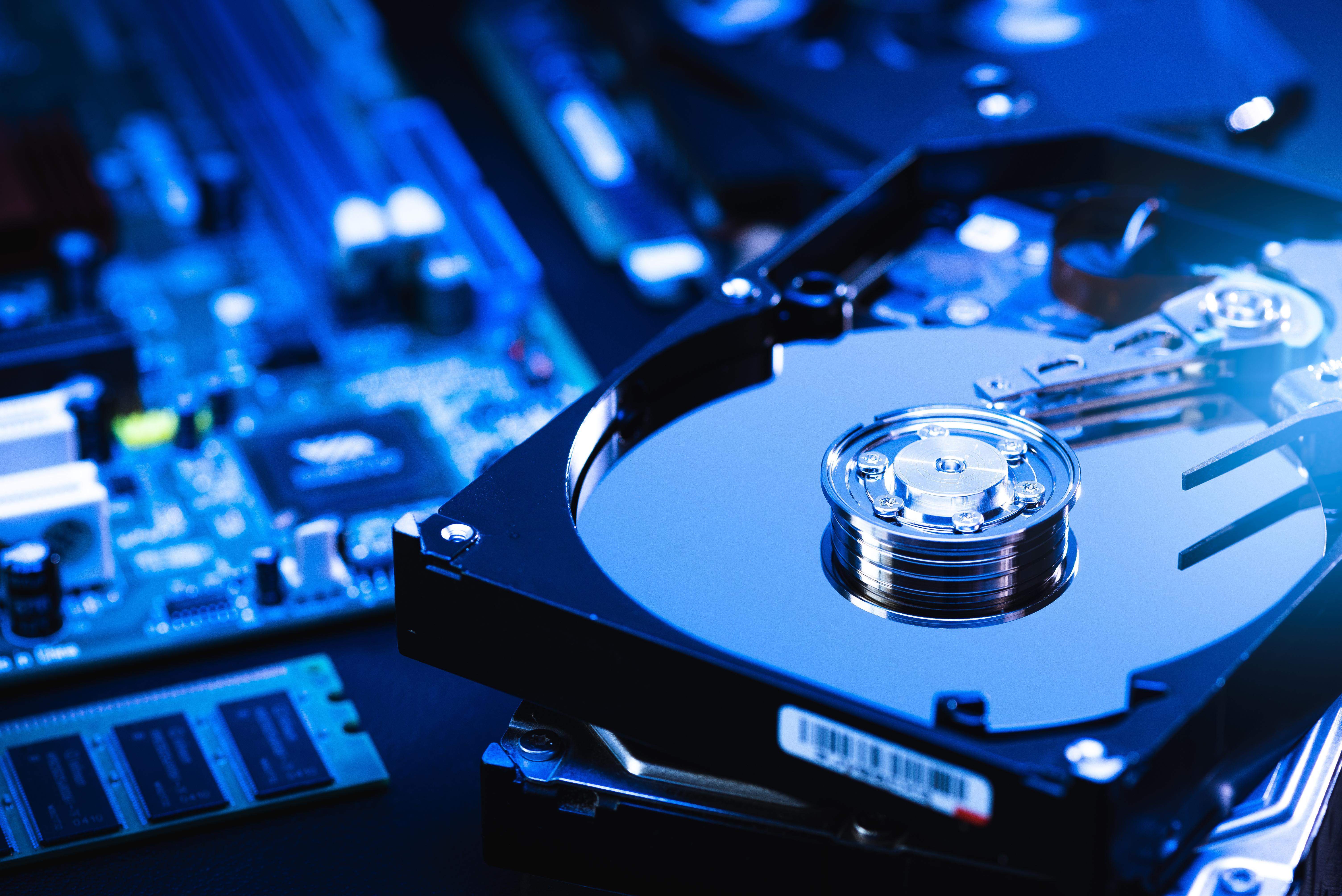
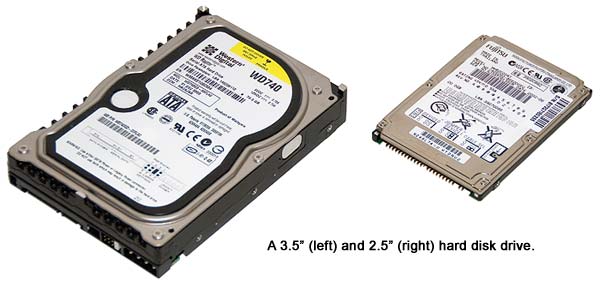
Hard Disk Drives store data on spinning metal disks. A read/write head moves across the disks to access data. HDDs offer large storage at a low cost. They are common in desktops and laptops. The moving parts make them slower and less durable than newer options.
Solid State Drives (ssd)
Solid State Drives use flash memory to store data. They have no moving parts, making them faster and more reliable. SSDs start programs and files quickly. They cost more than HDDs but improve computer speed. Many modern devices use SSDs for better performance.
Optical Drives
Optical Drives read and write data using laser light on discs. Examples include CDs, DVDs, and Blu-ray discs. They store music, videos, and backup files. Optical drives are less common now due to online storage and USB drives. Still, they are useful for physical media and archives.
Flash Drives
Flash Drives are small, portable storage devices using flash memory. They connect via USB ports for easy file transfer. Flash drives are popular for moving files between computers. They offer fast access and no moving parts. Their compact size makes them very convenient for everyday use.
Tertiary And Off-line Storage
Tertiary and off-line storage are types of data storage used to keep large amounts of information. They are not as fast as primary or secondary storage but help save space and cost. These storage types are ideal for backup, archiving, and long-term data keeping. Data in tertiary and off-line storage is not accessed regularly. It is stored safely for future use or emergencies.
Magnetic Tapes
Magnetic tapes store data on thin strips of plastic. They are an old but reliable storage method. Many companies use tapes for backups and archives. Tapes hold large data volumes at low cost. They are slow to read but very durable. Tapes are kept offline to protect data from damage.
External Storage Devices
External storage devices include hard drives and USB drives. They connect to computers through ports. These devices store extra data outside the main system. People use them for file transfer and backup. External devices are portable and easy to use. They provide quick access to stored files.
Cloud Storage
Cloud storage saves data on remote servers via the internet. Users can access files from anywhere at any time. Cloud services offer flexible storage sizes. Data is backed up and protected by the service provider. Cloud storage reduces the need for physical devices. It supports sharing and collaboration on files.
Storage Performance Factors
Storage performance is key to how well a computer works. It affects how fast data can be saved and accessed. Understanding the main factors helps in choosing the right storage device. This section explains the important elements that impact storage performance.
Speed And Access Time
Speed shows how fast data moves between storage and the computer. Access time means the delay before data starts moving. Lower access time means quicker data retrieval. Solid State Drives (SSDs) often have faster speeds and lower access times than Hard Disk Drives (HDDs).
Capacity And Scalability
Capacity is the total space available to store data. Larger capacity means more files and programs can fit. Scalability refers to how easily storage can be increased. Some systems allow adding more drives or upgrading to bigger ones without issues.
Durability And Reliability
Durability means how well storage holds up over time and use. Reliability is about how often storage works without errors. SSDs usually have better durability since they have no moving parts. Reliable storage prevents data loss and keeps your information safe.
Benefits Of Different Storage Types
Different types of computer storage offer unique benefits. Choosing the right one can improve your device’s performance and usability. Understanding these benefits helps you pick storage that fits your needs.
Speed Advantages
Some storage types read and write data very fast. Solid State Drives (SSDs) provide quick access to files. This speed helps programs run smoothly and reduces wait times. Hard Disk Drives (HDDs) are slower but still useful for large files. Faster storage means better overall computer performance.
Cost Efficiency
Different storage types vary in price. HDDs usually cost less per gigabyte. They offer more space for less money. SSDs cost more but provide faster speed. USB flash drives are affordable and good for small data. Cost-effective storage helps save money while meeting needs.
Portability
Some storage devices are easy to carry around. USB drives and external SSDs fit in your pocket. They allow quick data transfer between computers. Portable storage is great for sharing files or backups. It adds convenience for people on the move.
Data Security
Storage types differ in how they protect data. SSDs have no moving parts, which reduces damage risk. External drives can be locked or encrypted for safety. Cloud storage offers backup in case of hardware failure. Secure storage keeps important information safe from loss.
Choosing The Right Storage
Choosing the right storage for your computer is important. It affects speed, space, and how well your system works. Different storage types suit different needs. Picking the right one helps keep your data safe and your computer fast.
Based On Usage Needs
Think about what you use your computer for. If you store many photos or videos, you need a large storage drive. For gaming or fast software, a quick SSD is better. Basic tasks like browsing need less storage. Match the storage type to your daily work.
Budget Considerations
Storage costs vary a lot. SSDs cost more but are faster. HDDs are cheaper and offer more space. Set a budget before buying. Choose storage that fits your price range and needs. Balance speed and size without spending too much.
Future-proofing Storage
Think about your future needs. Storage that is too small can fill up fast. Choose a drive that can grow with you. Some computers allow adding more storage later. Pick options that support upgrades or bigger capacity. This saves money and hassle later.
Emerging Storage Technologies
Storage technology keeps growing fast. New types of storage help computers work better. These emerging storage technologies offer faster speed, more space, and better durability. They change how data is saved and accessed.
Understanding these new options helps you see the future of computer storage.
Nvme Drives
NVMe stands for Non-Volatile Memory Express. It is a new way to connect storage to a computer. NVMe drives use the PCIe bus, which is very fast. This makes reading and writing data much quicker than old drives. NVMe drives also use less power. Many laptops and desktops now use NVMe for better performance.
3d Xpoint Memory
3D XPoint is a new type of memory developed by Intel and Micron. It is faster than regular flash memory. 3D XPoint stores data in a special 3D structure. This allows quick access and high endurance. It works between RAM and storage in speed. Devices using 3D XPoint can run applications faster and store data more reliably.
Holographic Storage
Holographic storage uses light to store data in three dimensions. It can hold a large amount of information in a small space. This technology reads and writes data by creating holograms. Holographic storage promises long-lasting and stable data storage. It is still in development but shows great potential for the future.
Credit: www.explainingcomputers.com
Frequently Asked Questions
What Is Computer Storage And Why Is It Important?
Computer storage refers to devices that save digital data permanently or temporarily. It is crucial for keeping files, programs, and system data accessible for processing and future use.
What Are The Main Types Of Computer Storage?
The main types include primary storage (RAM), secondary storage (HDD, SSD), and tertiary storage (optical discs, tapes). Each serves different purposes based on speed, capacity, and permanence.
How Does Storage Differ From Memory In Computers?
Storage holds data long-term, even without power. Memory (RAM) temporarily stores data for active processes and loses content when the computer turns off.
What Factors Affect Computer Storage Performance?
Storage performance depends on type (SSD vs HDD), speed (RPM or read/write rates), interface (SATA, NVMe), and capacity. Faster storage improves data access and system responsiveness.
Conclusion
Storage in a computer holds all your important data safely. It helps save files, programs, and the operating system. Different types of storage serve different needs and speeds. Choosing the right storage improves computer performance and user experience. Understanding storage basics makes it easier to manage your device.
Keep your data organized and secure with good storage options. Storage is a key part of how computers work every day. Simple but essential.
As an Amazon Associate, I earn from qualifying purchases.

