
Have you ever wanted to feel like the sounds in your headphones are all around you, not just coming from left or right? Windows Sonic for Headphones might be the key to unlocking that experience.
It’s designed to make your music, movies, and games sound more immersive and realistic. If you’ve been curious about how to get better audio without buying expensive gear, this feature could change the way you listen. Keep reading to discover what Windows Sonic for Headphones is and how it can transform your sound world.
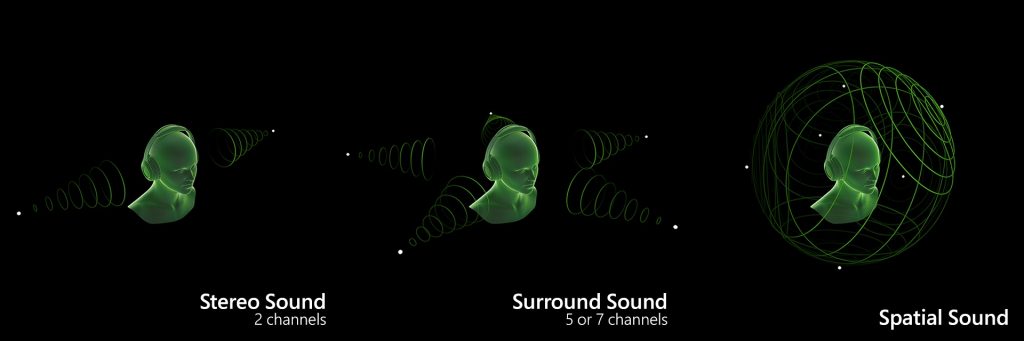
Credit: blogs.windows.com
Windows Sonic Basics
Windows Sonic is a sound technology developed by Microsoft. It improves the audio experience through virtual surround sound. This technology makes sounds feel more real and three-dimensional. It works well with headphones to create an immersive listening experience. Understanding the basics helps users enjoy better sound quality on their devices.
What Windows Sonic Does
Windows Sonic creates virtual 3D sound for headphones. It simulates surround sound without extra speakers. This makes audio seem like it comes from all around you. The effect enhances movies, games, and music. It helps users hear direction and distance of sounds clearly. This adds depth and realism to the audio.
Compatible Devices
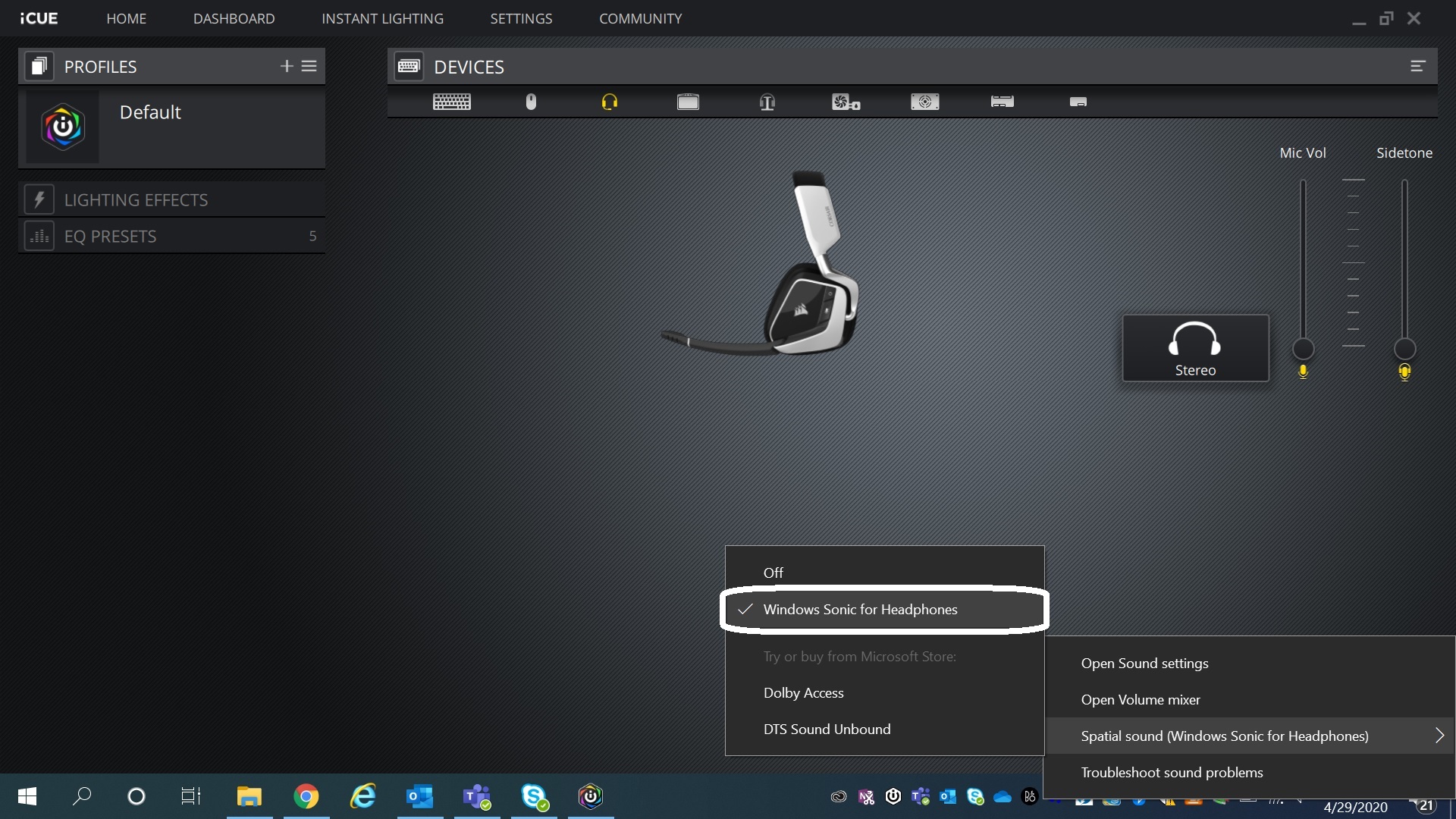
Windows Sonic works on many Windows 10 and 11 devices. It supports most wired and wireless headphones. You can enable it in the sound settings menu. It also works with Xbox consoles for gaming. No special hardware is needed to use Windows Sonic. It fits well with common headphones for better sound.
Credit: www.corsair.com
3d Audio Technology
3D Audio Technology creates sound that feels like it comes from all around you. It adds depth and space to audio, making it more real. Windows Sonic for Headphones uses this technology to improve your listening experience. Sounds move in three dimensions, not just left or right. This makes movies, games, and music more immersive and clear.
How 3d Audio Works
3D Audio uses special algorithms to place sounds in a virtual space. It tricks your brain into hearing sounds from different directions. The technology changes the timing and volume of sounds for each ear. This simulates how we hear in real life. It can make it seem like a sound is above, behind, or beside you. Windows Sonic processes audio in real time to achieve this effect.
Benefits Of Spatial Sound
Spatial sound improves focus by helping you locate sounds precisely. It adds realism to games by making audio cues clear. Movies feel more natural with sounds moving around you. It reduces listener fatigue by balancing sound levels. This technology works with any headphones, no special gear needed. Overall, it creates a richer and more engaging audio experience.
Setting Up Windows Sonic
Setting up Windows Sonic for Headphones is simple and quick. It enhances sound by creating a surround effect through your headphones. This guide helps you enable it on both PC and Xbox. Follow these easy steps to enjoy better audio experience.
Enabling Windows Sonic On Pc
Click the speaker icon on your taskbar. Select “Sound settings” from the menu. Scroll down to “Related Settings” and click “Sound Control Panel.” In the new window, select your playback device. Click the “Spatial sound” tab at the top. Choose “Windows Sonic for Headphones” from the dropdown menu. Click “Apply,” then “OK” to save changes. Your PC now uses Windows Sonic for better sound.
Using Windows Sonic On Xbox
Press the Xbox button to open the guide. Go to “Profile & system” and select “Settings.” Choose “General,” then “Volume & audio output.” Under “Headset audio,” select “Windows Sonic for Headphones.” This activates spatial sound on your Xbox. Enjoy clearer, more immersive audio during games or videos.
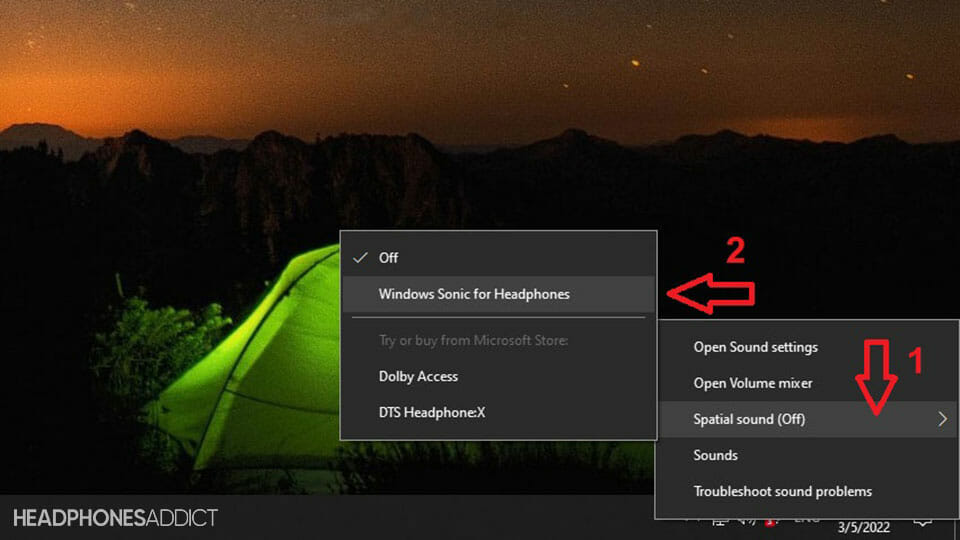
Credit: headphonesaddict.com
Windows Sonic Vs Other Audio Technologies
Windows Sonic is a spatial sound technology by Microsoft. It aims to deliver 3D audio through headphones. Many users wonder how it stands against other popular audio technologies. Comparing Windows Sonic with Dolby Atmos and DTS Headphone:X helps understand their strengths. Each tech offers a unique listening experience for movies, games, and music.
Comparison With Dolby Atmos
Dolby Atmos creates a more immersive sound environment. It uses object-based audio to place sounds precisely in 3D space. This makes effects feel like they come from all around you. Windows Sonic also offers spatial sound but with simpler processing. Dolby Atmos supports more audio channels and better sound detail. Many users find Dolby Atmos superior for home theaters. Windows Sonic is free and built into Windows devices. It works well for casual gaming and video watching. Dolby Atmos often requires extra purchase or hardware.
Comparison With Dts Headphone:x
DTS Headphone:X focuses on realistic headphone audio. It simulates multi-speaker setups around the listener. This creates a natural and clear sound stage. Windows Sonic tries to mimic this effect but is less advanced. DTS Headphone:X delivers better directionality and depth in sound. It is popular for gaming and music lovers who want detail. Windows Sonic remains a good option for basic 3D audio. DTS Headphone:X usually needs special software or licenses. Windows Sonic is more accessible for everyday users.
Optimizing Your Experience
Optimizing your experience with Windows Sonic for Headphones brings clearer sound and better spatial awareness. This feature creates a 3D audio effect that makes sounds feel like they come from all around you. To get the most from Windows Sonic, choose the right headphones and fine-tune your audio settings. Small changes can improve how you hear music, games, and movies.
Best Headphones For Windows Sonic
Windows Sonic works well with many headphones. Over-ear headphones often deliver the best sound quality. Look for headphones with good bass and clear highs. Wired or wireless models both work fine. Choose headphones that fit comfortably for longer use. Good headphones help you notice subtle sounds in games or films. They make the 3D effect feel real and immersive.
Adjusting Audio Settings
Adjusting audio settings improves your listening experience. Start by enabling Windows Sonic in your sound settings. Use the sound control panel to turn on spatial sound. Test different volume levels to find what feels right. Some apps let you adjust sound balance and effects. Try small tweaks to make voices clearer or bass deeper. These changes help Windows Sonic work better with your headphones.
Troubleshooting Common Issues
Windows Sonic for Headphones can improve sound quality but may face some issues. Troubleshooting helps fix common problems fast. Follow simple steps to enjoy clear audio and smooth performance.
Fixing Audio Problems
Check if Windows Sonic is turned on in sound settings. Restart your computer to refresh system functions. Update audio drivers from the device manager. Lower volume levels can cause weak sound. Try different headphones to rule out hardware issues.
Ensuring Compatibility
Windows Sonic works best with Windows 10 and later versions. Confirm your device supports spatial sound features. Some apps may not support Windows Sonic fully. Use headphones that support surround sound for better results. Keep your system updated to avoid compatibility problems.
Use Cases For Windows Sonic
Windows Sonic for Headphones offers a new way to hear sound. It creates a 3D audio space around you. This changes how you experience games, movies, and music. The sound feels more real and deep. Many people use it to improve their audio experience. Let’s explore some common uses for Windows Sonic.
Gaming Advantages
Windows Sonic helps gamers hear every detail. Sounds come from all directions. You can tell where footsteps or shots happen. This makes it easier to find enemies. The audio feels like it surrounds you. It adds to the excitement and immersion. Games become more intense and clear.
Enhancing Movie Playback
Movies sound better with Windows Sonic. The audio feels wide and deep. Voices, music, and effects come from different angles. It feels like you are inside the scene. Quiet sounds and loud actions are clearer. Watching movies becomes more enjoyable and real.
Music Listening Experience
Music sounds richer and more detailed. Instruments and vocals have space to breathe. You can hear sounds from different directions. This creates a live concert feeling. Songs feel fuller and more natural. It makes listening to music more fun and fresh.
Frequently Asked Questions
What Is Windows Sonic For Headphones?
Windows Sonic for Headphones is a spatial sound technology by Microsoft. It creates a 3D audio environment, enhancing headphone audio experience. It simulates surround sound, making audio more immersive and realistic for movies, games, and music.
How Does Windows Sonic Improve Headphone Audio?
Windows Sonic improves headphone audio by adding spatial sound effects. It creates virtual surround sound, helping users perceive audio direction and distance. This results in clearer, more immersive, and realistic sound through standard stereo headphones.
Is Windows Sonic Free To Use On Windows?
Yes, Windows Sonic is a free spatial sound feature included in Windows 10 and later versions. Users can enable it in the sound settings without additional costs or software downloads.
Can Windows Sonic Replace Expensive Gaming Headphones?
Windows Sonic enhances audio but doesn’t replace high-end gaming headphones. It improves sound positioning and immersion but lacks hardware benefits like noise cancellation or superior drivers.
Conclusion
Windows Sonic for Headphones improves sound quality for a better experience. It creates 3D audio using simple software settings. You can enjoy clearer, richer sounds in games and movies. No extra devices or expensive gear are needed. This feature works well on many Windows devices.
Try it out to hear the difference yourself. It makes listening more immersive and enjoyable. Perfect for casual users who want better audio without hassle. Give your headphones a new sound dimension today.
As an Amazon Associate, I earn from qualifying purchases.

