
Is your laptop fan sounding like a jet engine every time you use it? That loud noise can be distracting and even worrying.
You might wonder if your laptop is overheating or if something is wrong inside. Understanding why your laptop fan is so loud can help you fix the problem before it causes damage or slows down your work. Keep reading, and you’ll discover simple reasons behind the noise and easy steps to quiet your laptop down fast.

Credit: www.youtube.com
Common Reasons For Loud Laptop Fans
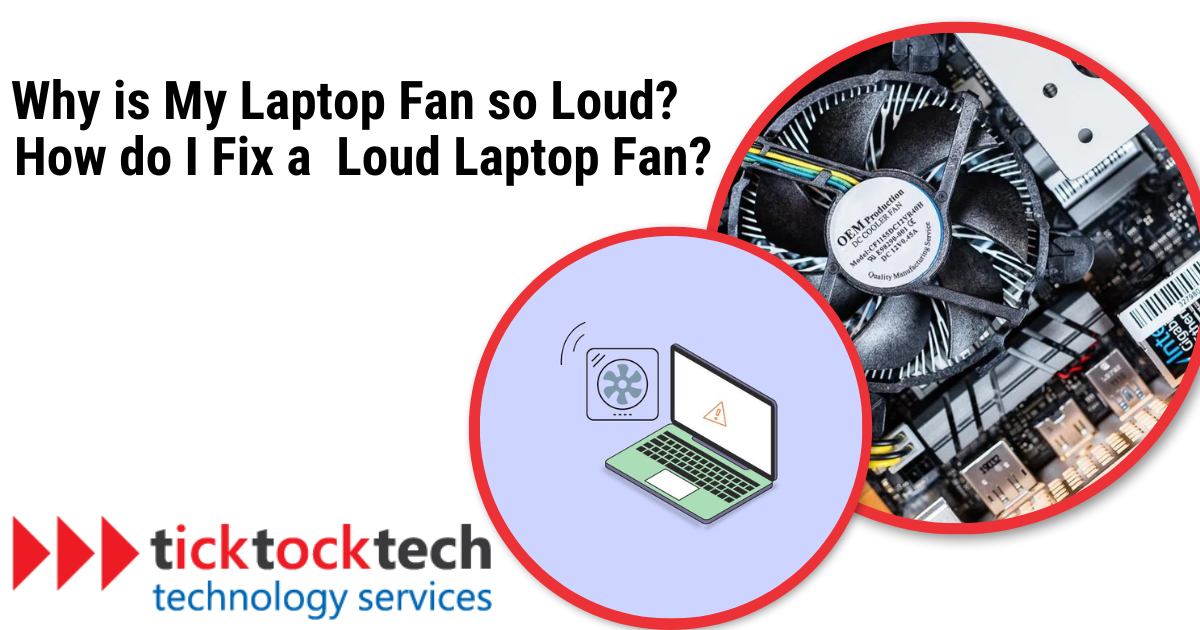
Loud laptop fans often signal an issue inside your device. Understanding common reasons helps you fix the problem early. Fans work hard to keep your laptop cool and safe. When they get noisy, it means they are struggling.
Overheating Components
Overheating parts cause fans to spin faster. The CPU and GPU generate heat during use. If heat builds up, the fan kicks in to cool them. Poor ventilation or heavy tasks raise temperatures quickly. This forces the fan to run loudly to protect the hardware.
Dust And Debris Build-up
Dust clogs vents and blocks airflow inside the laptop. This makes it hard for the fan to cool parts properly. Fans work harder to push air through dirt and dust. The result is louder noise and less efficient cooling. Cleaning dust regularly helps keep noise down.
High Cpu Usage
Running many programs or heavy software makes the CPU work hard. This increases heat and causes the fan to speed up. High CPU use often happens during gaming or video editing. Reducing background tasks can lower fan noise. Check your running programs to find culprits.
Faulty Fan Or Hardware Issues
A broken or old fan can be noisy too. Bearings may wear out, causing grinding sounds. Other hardware problems might make the fan overwork. If noise stays loud after cleaning and low CPU use, check the fan. Replacing faulty parts can restore quiet operation.
Credit: ticktocktech.com
How Temperature Affects Fan Noise
Laptop fans get louder as the device heats up. The temperature inside your laptop controls how fast the fan spins. Higher heat means the fan must work harder to cool down the parts. Understanding this helps explain why your laptop fan noise changes.
Heat Generation In Laptops
Laptops create heat during use. The processor, graphics card, and memory produce most heat. Running many programs or heavy tasks makes these parts hotter. The small space inside a laptop traps this heat. Without proper cooling, the temperature rises quickly.
Thermal Throttling And Fan Speed
To stop damage from heat, laptops use thermal throttling. This reduces the processor speed to lower heat output. At the same time, the fan spins faster to cool the system. Faster fan speed causes louder noise. This is a sign your laptop tries to keep cool.
Identifying Overheating Symptoms
Overheating affects laptop performance and fan noise. Your laptop may slow down or freeze. The fan noise becomes very loud and constant. The bottom or keyboard can feel hot to touch. Watching these signs helps you act before damage occurs.
Simple Ways To Cool Down Your Laptop
Loud laptop fans often mean the device is working hard to stay cool. Overheating can slow down your laptop and cause damage. Simple steps can help lower the temperature and quiet the fan. These methods improve cooling without extra cost or tools. Here are easy ways to cool down your laptop.
Improving Airflow And Ventilation
Place your laptop on a hard, flat surface. Soft surfaces like beds or couches block air vents. Keep vents clear of dust and dirt by cleaning them regularly. Use a small brush or compressed air to remove dust. Avoid using your laptop on your lap for long periods. This helps air flow freely and reduces heat build-up.
Using Cooling Pads
Cooling pads are devices with fans that sit under your laptop. They help move air around and cool the bottom of your laptop. These pads are easy to use and plug into USB ports. Cooling pads reduce the laptop’s temperature and make the fan quieter. They are useful when working in warm rooms or on heavy tasks.
Adjusting Power Settings
Change your laptop’s power settings to reduce heat. Choose power-saving or balanced modes instead of high performance. Lowering screen brightness also helps reduce heat. Close unused apps and programs to lessen CPU load. This reduces the work the laptop does and cools it down faster.
Credit: www.asurion.com
Cleaning And Maintenance Tips
Loud laptop fans often signal dust and dirt buildup. Regular cleaning and maintenance keep your laptop cool and quiet. Simple steps help your device run smoothly and last longer.
Removing Dust Safely
Turn off and unplug your laptop before cleaning. Use a soft brush or compressed air to remove dust from vents. Avoid using a vacuum cleaner directly on the laptop. Blow air in short bursts to prevent damage. Clean dust from both the fan and vent areas carefully.
When To Open Your Laptop
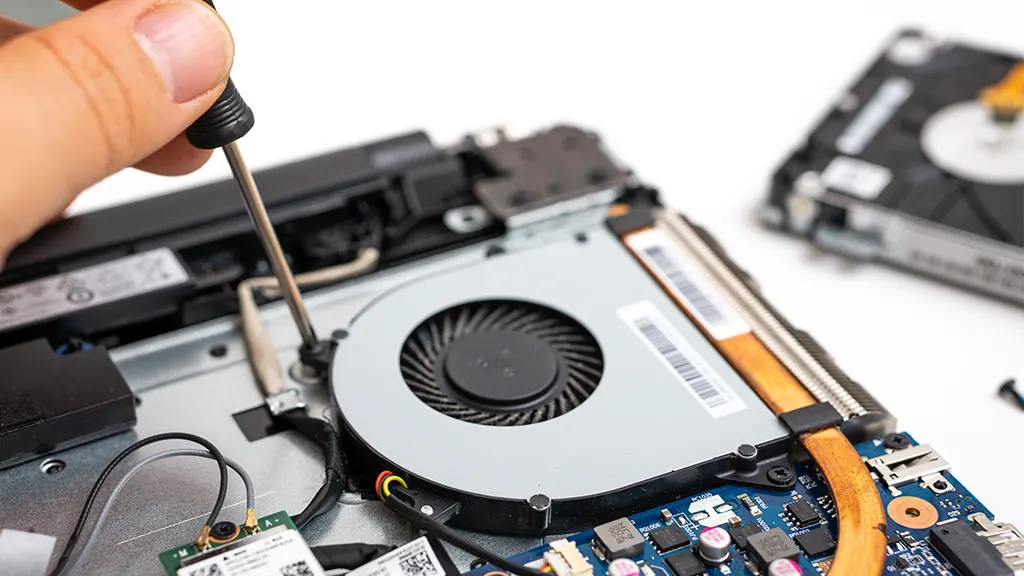
Open your laptop only if you feel confident and have the right tools. Check your warranty to avoid voiding it. Use a screwdriver designed for small screws. Gently remove the back panel and avoid touching internal parts. Clean the fan and heat sink with compressed air or a brush. Close the panel securely after cleaning.
Regular Maintenance Schedule
Clean your laptop’s vents and fan every three to six months. More often if you use it in dusty places. Check for fan noise regularly. Update your software to help with cooling efficiency. A steady routine keeps your laptop quiet and cool.
Software Solutions To Reduce Fan Noise
Your laptop fan can get noisy due to high internal heat. Software solutions can help control this noise by managing how your laptop works. These fixes target the programs and system settings that cause your CPU to work hard. This reduces heat and slows down the fan.
Monitoring Cpu Usage
Check which programs use the most CPU power. Use tools like Task Manager on Windows or Activity Monitor on Mac. They show apps that run in the background and use CPU. Close or limit apps that use too much power. This lowers the heat your laptop produces. The fan then does not need to run as fast or loud.
Closing Background Programs
Many programs run even if you don’t see them. These can use CPU and increase heat. Close unnecessary programs to reduce workload. Use the system tray or Task Manager to find these apps. Turning off these apps can quickly reduce fan noise. It frees up resources and cools your laptop down.
Updating Drivers And Bios
Outdated drivers or BIOS can cause hardware to work inefficiently. This may make your fan run louder than usual. Visit your laptop maker’s website for updates. Install the latest drivers and BIOS updates carefully. These updates often fix bugs and improve cooling control. Your fan will run smoother and quieter after updates.
When To Seek Professional Help
Your laptop fan may be loud for many reasons. Sometimes, the noise is easy to fix. Other times, it signals a bigger problem. Knowing when to seek professional help saves time and money. It also protects your laptop from damage.
Some problems need expert tools and skills. Professionals can find hidden issues fast. They can also replace broken parts safely. Learning the signs of hardware failure helps you decide. Checking warranty and repair options guides your next steps. Choosing the right repair service ensures quality work.
Signs Of Hardware Failure
Constant loud fan noise can mean hardware failure. Your laptop may also shut down suddenly. The fan might stop spinning sometimes. Overheating happens even after cleaning vents. You may notice strange smells or sounds. These signs mean your laptop needs a checkup.
Warranty And Repair Options
Check if your laptop is still under warranty. Warranties often cover fan and hardware problems. Contact the manufacturer for repair services first. Avoid opening the laptop yourself if under warranty. This keeps your warranty valid and safe. If warranty expired, explore local repair shops.
Choosing A Repair Service
Pick a repair service with good reviews. Look for technicians experienced in laptop repairs. Ask about service guarantees and repair time. Avoid very cheap repairs; quality matters most. Confirm if they use original parts. This helps your laptop run quietly and last longer.
Frequently Asked Questions
Why Is My Laptop Fan Suddenly So Loud?
A loud laptop fan often means your device is overheating. Dust buildup or heavy programs can cause this. Cleaning vents and closing unused apps can help reduce noise and improve cooling.
Can High Cpu Usage Make Laptop Fan Louder?
Yes, high CPU usage forces the fan to work harder. Running multiple demanding programs increases heat. This triggers the fan to spin faster, creating more noise.
Does Overheating Cause Laptop Fan Noise?
Overheating is a common cause of loud fan noise. When the laptop temperature rises, the fan speeds up to cool components. Proper ventilation and cleaning can prevent overheating and noise.
How Often Should I Clean My Laptop Fan?
Cleaning your laptop fan every 3 to 6 months is ideal. Dust and debris accumulate and block airflow, causing loud fans. Regular cleaning keeps your laptop cool and quiet.
Conclusion
A loud laptop fan often signals heat or dust inside. Cleaning the fan and vents helps a lot. Running many programs can also make it work harder. Closing unused apps can reduce noise. Keeping your laptop on a hard surface improves airflow.
Regular checks keep your device cool and quiet. Small steps can make your laptop run smoother. Don’t ignore the noise; it protects your computer. Your laptop will thank you with better performance.
As an Amazon Associate, I earn from qualifying purchases.

