Are you curious about what the Realtek Gaming 2.5 Gbe Family Controller is and why it matters for your gaming setup? Whether you’re a casual gamer or a serious competitor, understanding this piece of hardware can boost your internet speed and reduce lag.
Imagine smoother gameplay and faster downloads without spending a fortune. You’ll discover exactly what this controller does, how it benefits your PC, and why it could be the upgrade you didn’t know you needed. Keep reading to unlock the full potential of your gaming experience.
Realtek Gaming 2.5 Gbe Family Controller Basics
The Realtek Gaming 2.5 Gbe Family Controller is a network interface device. It helps your computer connect to wired internet networks. This controller supports faster data transfer speeds than usual Ethernet controllers. It is designed mainly for gaming and high-speed internet use. This device offers stable and smooth internet connections. It helps reduce lag and network delays.
This controller is built to handle heavy internet traffic. It improves online game performance and streaming quality. The Realtek Gaming 2.5 Gbe Family Controller works well with many modern devices. It provides a reliable and quick connection for everyday use.
Key Features
- Supports speeds up to 2.5 Gigabits per second.
- Provides stable and low-latency internet connections.
- Compatible with various network protocols.
- Offers energy-efficient operation to save power.
- Includes advanced error correction for better data integrity.
Supported Devices
This controller works with most desktop motherboards. It supports many laptops with Ethernet ports. The controller is common in gaming PCs and custom builds. It also fits well in multimedia and streaming devices. Compatibility depends on the device’s network hardware support.
Comparison With Standard Ethernet
Standard Ethernet usually supports speeds up to 1 Gigabit per second. The Realtek Gaming 2.5 Gbe Controller doubles this speed. It offers faster data transfer for online gaming and video streaming. This controller reduces network congestion better than standard Ethernet. It provides a smoother experience with fewer interruptions.
Installation And Setup
Setting up the Realtek Gaming 2.5 Gbe Family Controller is simple. It requires installing the right driver and adjusting network settings. This ensures your device runs smoothly and delivers fast internet speeds.
The steps below guide you through the installation and setup process. Follow them carefully for the best results.
Driver Installation
First, download the latest driver from the official Realtek website. Choose the version that matches your operating system. After downloading, open the setup file and follow the instructions on the screen. Restart your computer after installation to activate the driver. This step allows the controller to communicate with your system properly.
Configuring Network Settings
Open the network settings on your computer. Find the Realtek Gaming 2.5 Gbe controller in the list of network adapters. Set it as the default device for your connection. Adjust speed and duplex settings to 2.5 Gbps if available. This boosts network performance for gaming and heavy tasks. Save the changes and close the settings window.
Troubleshooting Common Issues
Check cable connections if the controller does not work. Use a high-quality Ethernet cable to avoid problems. Update the driver regularly to fix bugs and improve stability. Disable other network adapters to prevent conflicts. Restart your computer if you face slow speeds or disconnections. These steps often solve common problems quickly.
Performance Benefits
The Realtek Gaming 2.5 Gbe Family Controller offers strong performance benefits for gamers. It improves network speed, reduces delays, and makes games run smoother. These benefits help create a better gaming experience overall. Let’s explore how this controller boosts your gaming setup.
Speed And Bandwidth
This controller supports speeds up to 2.5 Gbps. It provides more bandwidth than standard 1 Gbps connections. This means faster data transfer and quicker downloads. Large game files and updates move quickly. It helps keep your connection strong during intense gameplay.
Latency And Stability
Lower latency means less lag in games. This controller reduces the delay between your actions and the game’s response. It also offers stable connections, preventing sudden drops. Stable connections keep gameplay smooth and consistent. This is important for competitive gaming.
Gaming Experience Enhancements
The Realtek controller improves the overall gaming feel. It helps in fast matchmaking and smooth multiplayer sessions. Your commands register faster, improving control. The controller also supports better network traffic management. This means fewer interruptions and better focus on the game.
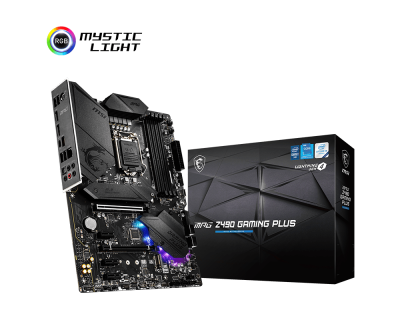
Credit: us.msi.com
Compatibility And Requirements
The Realtek Gaming 2.5 Gbe Family Controller is a high-speed network adapter. It enhances your gaming and internet experience. To use it well, your system must meet certain compatibility and requirements. These include the right operating system, hardware, and firmware updates. Ensuring these factors helps the controller perform smoothly and without issues.
Operating System Support
This controller supports several operating systems. It works best with Windows 10 and Windows 11. Some versions of Windows 7 and 8 may also support it. Linux users need specific drivers for compatibility. Make sure your operating system is up to date. This helps avoid driver conflicts and connection problems.
Hardware Prerequisites
Your computer should have a PCIe slot for installation. The controller fits into a PCIe x1, x4, or larger slot. It needs a compatible motherboard that supports 2.5 Gbe speeds. A 2.5 Gbe router or switch is also necessary. Without compatible hardware, you cannot achieve the full speed benefits.
Firmware Updates
Firmware updates improve performance and fix bugs. Check Realtek’s website for the latest firmware versions. Regular updates keep your controller secure and stable. Follow the update instructions carefully to avoid issues. Keeping firmware current ensures the best network experience.
Advanced Features
The Realtek Gaming 2.5 Gbe Family Controller offers several advanced features. These features improve your network speed and stability. They make gaming and streaming smoother. The controller manages power, supports larger data packets, and prioritizes traffic. Each feature helps your device perform better on the network.
Power Management
This controller uses smart power management. It reduces power use during low network activity. This saves battery life on laptops. It also helps reduce heat generation. The controller wakes quickly when network traffic increases. This keeps your connection fast without wasting energy.
Jumbo Frame Support
Jumbo frames carry larger data packets than normal frames. This reduces the number of packets sent. It lowers the workload on your network hardware. The Realtek controller supports jumbo frames up to 9,000 bytes. This improves data transfer speed and reduces delays. It helps in fast file transfers and smooth gaming.
Qos And Traffic Prioritization
Quality of Service (QoS) helps manage network traffic. The controller prioritizes important data packets first. This means gaming and video calls get higher priority. Less important traffic waits in line. This reduces lag and improves your experience. The controller ensures critical data moves quickly and smoothly.
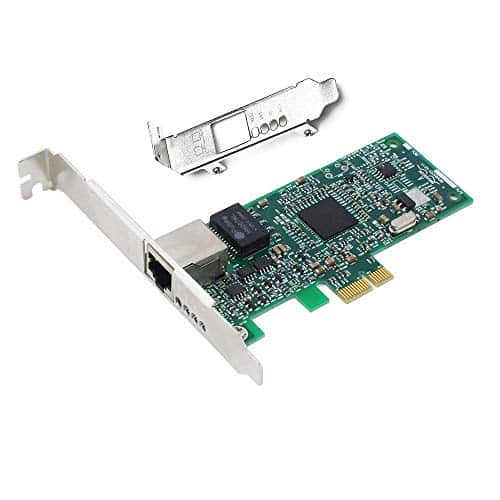
Credit: www.driversupport.com
Common Problems And Fixes
The Realtek Gaming 2.5 GbE Family Controller is a popular network adapter. It offers fast and stable internet connections for gaming and streaming. Despite its strengths, users face some common problems. These issues can affect performance and user experience. Fortunately, most problems have simple fixes. Knowing these helps maintain a smooth network connection.
Driver Conflicts
Driver conflicts occur when multiple drivers clash. This causes the controller to stop working properly. Old or incompatible drivers are often the cause. To fix this, uninstall the current driver first. Then, download the latest driver from Realtek’s official site. Restart your computer after installation. This clears conflicts and improves stability.
Connection Drops
Connection drops disrupt online activities and cause frustration. Loose cables or faulty ports can cause this issue. Check all cables and ports for damage or loose connections. Updating the network driver often helps too. Disable power-saving features that turn off the network adapter. This keeps the connection active and steady.
Speed Limitations
Speed limitations reduce the internet speed below expected levels. Sometimes the network settings limit the speed automatically. Adjust the adapter settings by opening Device Manager. Find the Realtek controller, then select Properties. Under Advanced settings, set the speed to 2.5 Gbps or auto-negotiate. Using high-quality Ethernet cables also helps achieve full speed.
Optimizing Network Performance
Optimizing network performance is key to a smooth gaming experience with the Realtek Gaming 2.5 Gbe Family Controller. This network adapter supports fast data transfer, but settings also matter. Adjusting configurations can reduce lag and improve stability. Monitoring the network helps spot issues early. Using third-party tools can offer extra control over connection quality.
Tweaking Settings For Gaming
Adjust the controller’s speed and duplex settings for best results. Set the speed to 2.5 Gbps if your network supports it. Disable power-saving features to avoid slowdowns during gaming. Prioritize gaming traffic by enabling Quality of Service (QoS) options in your router or adapter settings. These small changes can lower ping and reduce packet loss.
Using Third-party Software
Third-party apps can enhance the Realtek controller’s performance. Tools like network optimizers help manage bandwidth and reduce interruptions. Some software allows you to limit background app usage, freeing up network resources for games. Choose trusted programs to avoid security risks. These apps provide deeper control over your network connection.
Monitoring Network Activity
Keep track of your network’s real-time status with monitoring tools. These tools show data usage, speed, and connection quality. Spotting unusual spikes or drops helps identify problems fast. Regular checks prevent slowdowns and disconnections during gaming. Use built-in Windows utilities or third-party apps for easy monitoring.

Credit: www.reddit.com
Frequently Asked Questions
What Is Realtek Gaming 2.5 Gbe Family Controller?
Realtek Gaming 2. 5 Gbe Family Controller is a high-speed Ethernet adapter. It supports 2. 5 Gbps wired network connections. It enhances gaming and streaming by reducing lag and increasing stability.
How Does Realtek 2.5 Gbe Improve Gaming?
It offers faster data transfer than standard Gigabit Ethernet. This reduces latency and packet loss. Gamers experience smoother gameplay and quicker response times with this controller.
Is Realtek Gaming 2.5 Gbe Compatible With Windows?
Yes, it supports Windows 10, 11, and some earlier versions. Drivers are available on Realtek’s official website. Proper installation ensures optimal network performance.
Can Realtek 2.5 Gbe Replace Standard Ethernet Adapters?
Yes, it is an upgrade over 1 Gbps adapters. It provides 2. 5 times faster speeds for compatible networks. Ideal for gamers and users needing high bandwidth.
Conclusion
Realtek Gaming 2. 5 Gbe Family Controller helps improve your network speed. It supports faster data transfer for smoother online gaming. This controller fits many computers and is easy to install. It reduces lag and keeps connections stable. Understanding this device helps you get better internet performance.
Choose it for reliable and quick network access. Simple and effective for gamers and everyday users alike. A good option to enhance your PC’s network.
As an Amazon Associate, I earn from qualifying purchases.